

Instructions for Use
Table of Contents
1. Overview
- BioDashboard (the Device) is intended to display and visualize physiological and medical data and log assessments.
- The Device displays data and notifies healthcare professionals when physiological data fall outside clinician-specified parameters.
- The data from the Device are intended as an aid to diagnosis, diseases management, and treatment.
- Healthcare professionals are the intended operators of this device.
- The Device is intended for use on patients who are 18 years of age or older.
- The Device is not intended for critical care.
- The Device has the ability to allow the clinician to configure the parameters for notifications.
2. Intended Use Statement
Please refer to the intended use for our BioIntelliSense Devices:
https://www.biointellisense.com/support
3. Warnings and Precautions
- Recommendations provided by BioDashboard are adjunctive (supporting). Do not solely or primarily rely on the BioDashboard to prevent, diagnose, or treat a disease or condition.
- Do not use accessories, detachable parts or materials other than those described.
4. Use Instructions
4.1. Login
To begin using the BioDashboard proceed to https://biodashboard.net which will display the login screen similar to that shown below.
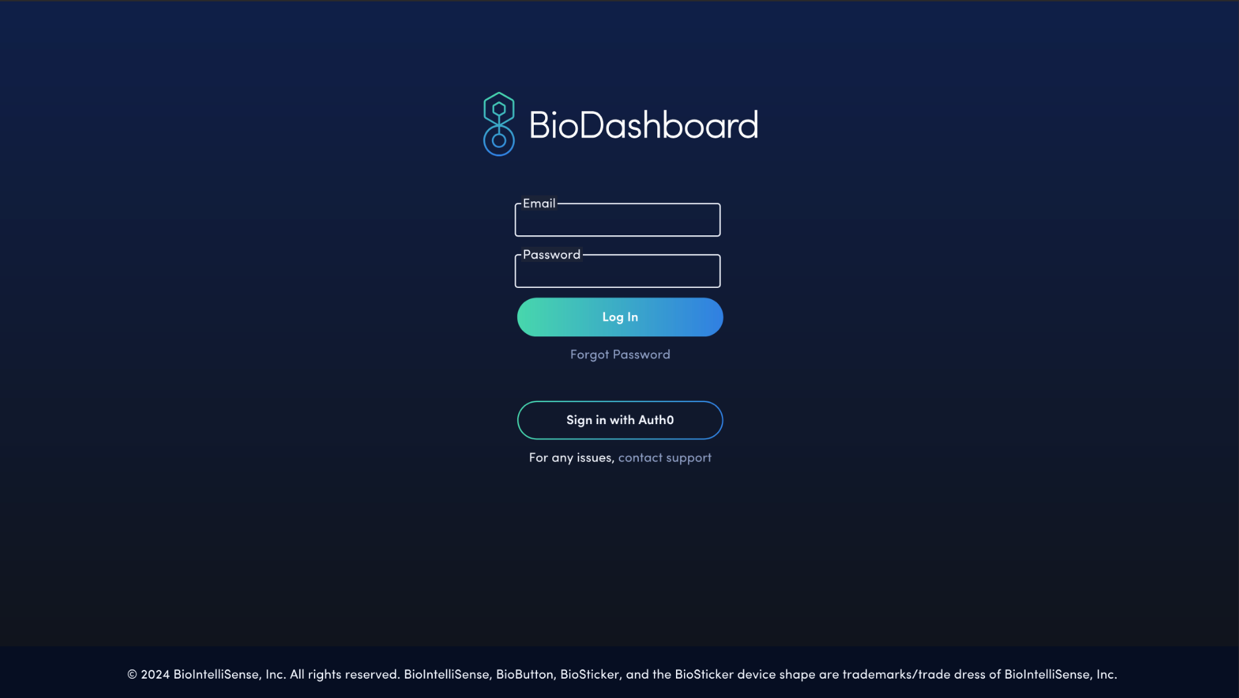
Enter your username and password to log in to BioDashboard. The following options are available:
- Email
Provide your email/username for your BioDashboard account. - Password
Provide your password for your BioDashboard account. - Log In Button

After entering your username and password, click this button to login. - Forgot Password Button

If you have forgotten your password, you can click this button to reset your password. - Sign in with Auth0

Click this button to use Auth0 to log in.


IMPORTANT NOTE: The options that are displayed on the login screen are dependent on your organization’s configuration.
4.2. Multi-Patient View
Once logged into BioDashboard, the Multi-Patient View is displayed similar to that shown below. Click the Census Button 

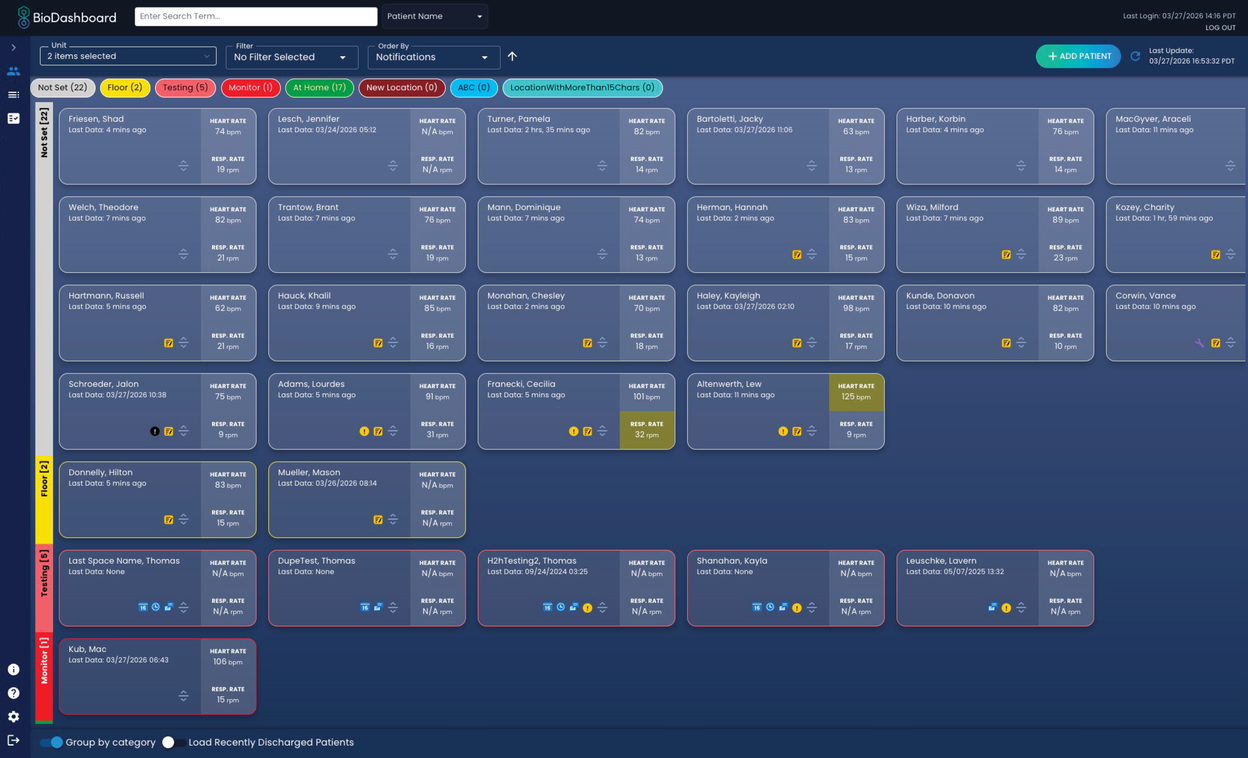
The Multi-Patient View displays summary information for all patients within the selected unit(s). The following options are available:
- Patient Cell
View summary information for an individual patient. Click a patient cell to display the Clinical View (described below) for that patient.- Patient room number
- Patient name
- Last data
Displays the time since the last data was received by a BioIntelliSense wearable monitoring device. - Wrench Icon

Indicates notification settings have been changed for the specific patient. - Active Clinical Notification Button

Indicates an active clinical notification. Click this button to view the Clinical View (described below). - Active Non-Clinical Notification Button

Indicates an active non-clinical notification. Click this button to view the Clinical View (described below). - Clinical Notification Review Button

Indicates a clinical notification for a specific patient that needs review. Click this button to access the Clinical View (described below) and enter an assessment for any notifications that need review.
IMPORTANT NOTE: Notes and Notification Reviews must be enabled in Settings to view this icon. - Non-Clinical Notification Review Button

Indicates a non-clinical notification for a specific patient that needs review. Click this button to access the Clinical View (described below) and enter an assessment for any notifications that need review.
IMPORTANT NOTE: Notes and Notification Reviews must be enabled in Settings to view this icon. - Move Patient Button

Click this button to access a dropdown menu to move the selected patient to a new category/color within a care unit in the Multi-Patient View, based on the configuration of the user. The default options are Not Set, Monitor, Telemetry, Floor, Home, and SNF.
IMPORTANT NOTE: User must have the PHI permission to move patients. - Patient Interactions Notification Button

Indicates there are no documented patient interactions for this patient. Click this button to access the Reimbursement View (described below).
IMPORTANT NOTE: “Enable RPM reimbursement icons in multi-patient view” must be enabled in Settings to view this icon. - Time Spent Notification Button

Indicates less than 10 minutes of time spent interacting with the patient. Click this button to access the Reimbursement View (described below).
IMPORTANT NOTE: “Enable RPM reimbursement icons in multi-patient view” must be enabled in Settings to view this icon. - Vitals Data Notification Button

Indicates patient has less than 2 days of vitals data collection. Click this button to access the Reimbursement View (described below).
IMPORTANT NOTE: “Enable RPM reimbursement icons in multi-patient view” must be enabled in Settings to view this icon. - Patient Heart Rate
Displays the most current resting heart rate for the patient from the BioIntelliSense wearable monitoring device. Yellow highlight indicates abnormally high level or low level. See Color Limits Tab in Help Menu for definitions. - Patient Respiratory Rate
Displays the most current resting respiratory rate for the patient from the BioIntelliSense wearable monitoring device. Yellow highlight indicates abnormally high level or low level. See Color Limits Tab in Help Menu for definitions.
- Add Patient Button

Click this button to access the Patient Registration Form (described below) to add a new patient to the current Unit.
IMPORTANT NOTE: PHI display must be enabled in the Settings to view this button, and it will only be available if configured for your organization. - Unit Dropdown Menu
Select the care unit(s) to display by selecting the corresponding checkbox(es). Click the “Apply” Button


- Filter Dropdown Menu
Select to display devices that have displayed data in the last 24 hours or 7 days, have notifications that need review, have modified alert settings, recently viewed patients (i.e. last 20 patients recently viewed), have active notification icons, have pinned notes, have reimbursement icons, and/or have been flagged. - Order By Dropdown Menu
Choose to sort patients by notifications, patient last name, Bio ID, length of stay, patient age, room, and patient ID/MRN.
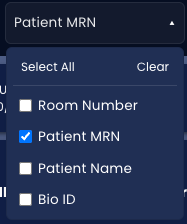
IMPORTANT NOTE: Patients with active notifications and notifications that need review are always displayed at the top of multi-patient view. PHI display must be enabled in the Settings to sort by notifications that need review. - Search Text Box
Search for specific text to find patients. Use the optional search parameters to help narrow down the search. All or none of the parameters can be selected:- Room Number
- Patient MRN
- Patient Name
- Bio ID


- Census Button


Click this button in the banner on the left side of the screen to access the Multi-Patient View. - About Menu Button


Click this button in the banner on the left side of the screen to display the BioDashboard version number and other software identification information, as well as provides access to the BioDashboard Instructions for Use. - Help Menu Button


Click this button in the banner on the left side of the screen to access the Help Menu (described below). - Settings Button


Click this button in the banner on the left side of the screen to access the Settings Menu (described below). - Logout Button


Click either of these buttons to logout. - Group by Category Slider

Slide this toggle to enable or disable category features. Individual patients can be categorized by category in the Clinical View Settings Menu (described below). - Load Discharged Patients Slider

Slide this toggle to show or hide discharged patients in the Multi-Patient View. Choose the number of past days of discharged patients to be displayed in the text box to the right of the slider. - Category Buttons
Click a category button at the top of the Multi-Patient View screen to only show patients within that specific category. The default options are Not Set, Monitor, Telemetry, Floor, Home, and SNF.


4.3. List View
Click the List View Button 

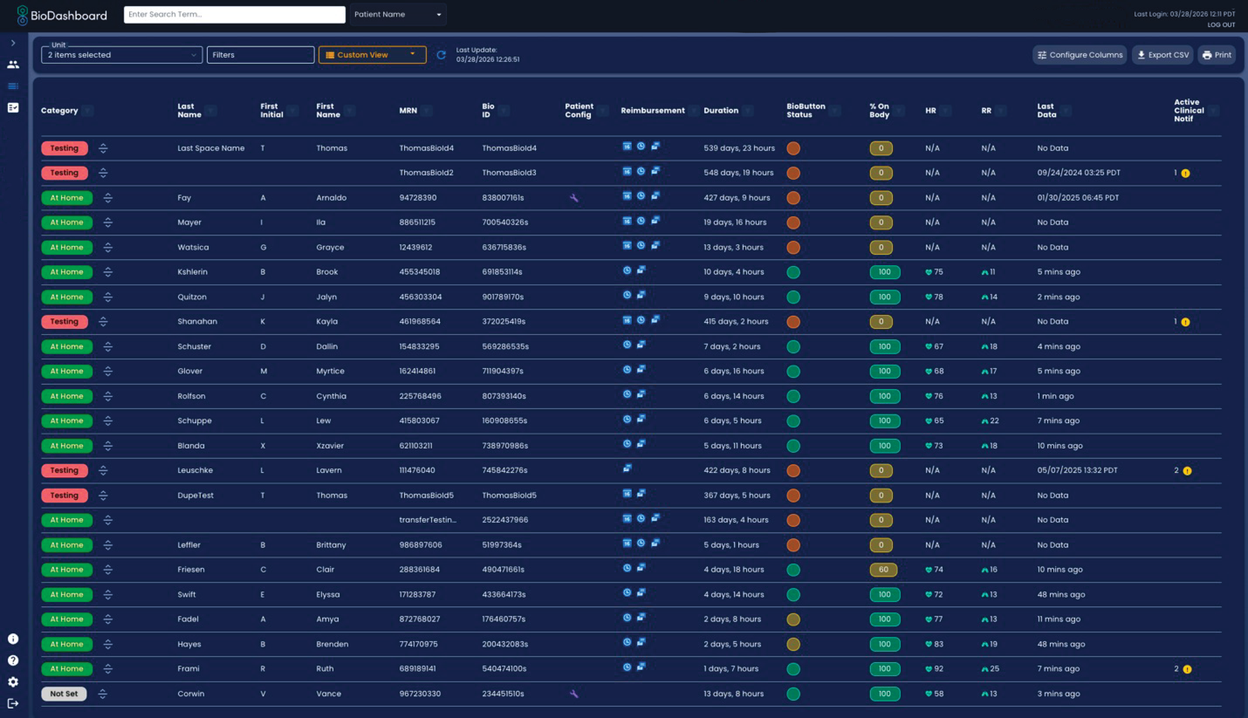
- Unit Dropdown Menu
Select the care unit(s) to display by selecting the corresponding checkbox(es). Click the “Apply” Button - Filter Dropdown Menu
Select the patient(s) to display by selecting the desired checkboxes. - Default Views Dropdown Menu
Select a default view to display. The following options are available.- Monitoring
- Virtual Rounding
- Central Nursing Station
- Care Coordination
- Home Monitoring
- All
- Print

Click this button to print a PDF of the current List View. - Export CSV Button

Click this button to export a CSV of the current List View. - Configure Columns Button

Click this button to customize the columns in List View. Choose the column(s) to be displayed by toggling the slider(s)



- List View Data
Click the arrow next to column to reverse the order the data are sorted by.- Patient Unit
The unit the patient is located in. - Category
The category/color the patient is assigned to in BioDashboard- Click on the move button (
- Click on the move button (
- Room
The room the patient is located in. - Patient Last Name
- Patient First Name
- Patient MRN
Patient specific identifier.- Hover over the MRN to copy the MRN to clipboard

- Hover over the MRN to copy the MRN to clipboard
- Patient Bio ID
Patient BioIntelliSense Device ID. - Duration
Number of days a patient has been monitored. - Patient Config
Purple wrench is displayed when patient configurations have been set. - Reimbursement
Reimbursement icons are displayed when billing criteria has not yet been met. - Duration
Number of days a patient has been monitored. - BioButton Status
The latest status of the patient and assigned device.- Green: HR and RR coming in
- Yellow: HR or RR missing for 2 hours
- Orange: HR or RR missing for 4 hours
- Purple: New BioButton scanned in last 2 hours
- HR
Current heart rate for patient. - RR
Current respiratory rate for patient. - % On Body
The percentage of time the device was detected as worn in the past 24 hours, based on the available offloaded data:- Green: > 80%
- Yellow: < 80%
- Clinical Notifications (24 h)
The number of clinical notifications generated for a patient in the past 24 hours:- Green: None
- Yellow: 1 notification
- Orange: > 2 notifications
- Gray: None and < 80% on body minutes available in the last 24 hours
- IMPORTANT NOTE: Hover over the row to view the timestamps and notification types.
- Active Clinical Notifications
The total number of active clinical notifications (excluding BOT notifications). - Active Non-Clinical Notifications
The total number of active technical notifications. - Clinical Notification Reviews
The total number of clinical notifications to be reviewed (excluding BOT notifications). - Non-Clinical Notification Reviews
The total number of technical notifications to be reviewed. - Activity (0-24h)
The total number of medium and high activity minutes recorded in the past 24 hours:- Green: > 220 minutes
- Yellow: 110-220 minutes
- Orange: < 110 minutes
- Gray: < 80% of activity minutes available in the last 24 hours
- IMPORTANT NOTE: Hover over the row to view the breakdown of activity in low, medium and high minutes.
- Activity (24-48h)
The total number of medium and high activity minutes recorded between 24 and 48 hours ago:- Green: > 220 minutes
- Yellow: 110-220 minutes
- Orange: < 110 minutes
- Gray: < 80% of activity minutes available between 24 and 48 hours ago.
- IMPORTANT NOTE: Hover over the row to view the breakdown of activity in low, medium and high minutes.
- Active Minutes Change
The difference in active minutes between the most recent 24 hours (0-24 hours) and the previous period (24-48 hours).- Green: Positive change
- Orange: Negative change
- Grey: Zero change or N/A
- Clinical Impact
Add or view clinical impact entries.- Plus Button

Click on this button within any of the patient rows to add a clinical impact. Select an entry category, associated notifications with the entry, and contextual information in the free text box. Select the flag patient checkbox for internal review. Then, select “Save Entry”.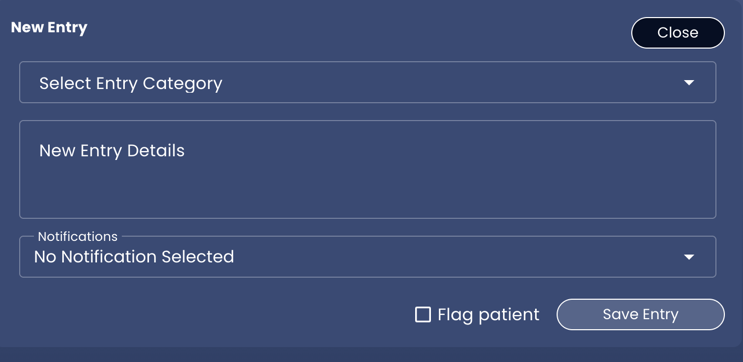
- Note Button

Click on this button in the Clinical Impact column to view previous entries that have been created.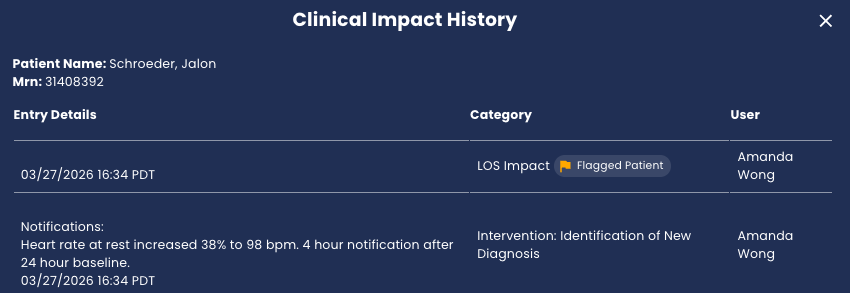
- Plus Button
- Patient Unit


4.4. Clinical Impact Report View
Click the Clinical Impact Report Button 

IMPORTANT NOTE: User must have the appropriate permission enabled to access the Clinical Impact Report.

The Clinical Impact Report outputs patients that were flagged by using the New Entry and Flag Patient Checkbox features in the Clinical View and Patient List View (described below). The following generation parameters are available:
- Unit
Select the desired Unit(s) to be included. - Time Zone
Select the desired time zone for all data displayed. - Start Date
Select the desired start date of the reporting period. - End Date
Select the desired end date of the reporting period. - Full PHI Slider
Slide this toggle to enable full PHI for the Clinical Impact Report. If not enabled, the non-PHI Clinical Impact Report will contain only de-identified patient data. - Generate Report Button

Click this button to generate the Clinical Impact Report for the parameters selected above. Once the report is finished loading, click on either buttons below to export.- Export CSV Button
Click this button to export a CSV file of the generated Clinical Impact Report.- The CSV export includes all flagged patients.
- Print Button

Click this button to print the generated Clinical Impact Report. The PDF is organized into several sections:- Table of Contents.
Displays a table of contents for the Clinical Impact Report. - Overview by Facility and Unit.
Displays table of number of entries by category for the selected organization(s), facility(ies), and/or unit(s). - Case Overviews.
Displays a summary of all flagged patients. Content includes the entry category, entry details and notification linked to issue if applicable. - Case Details.
Displays a summary of all flagged patients with at least one tagged clinical notification. Content includes the entry category, entry details, tagged notification(s), notification assessment details (i.e. assessment, action, reactions) and patient charts for heart rate, respiratory rate, activity, and skin temperature annotated to highlight all notifications that occurred during the time date range selected (see notification icon(s) on chart(s). Below the chart, each notification is further listed and described.- Notification Annotation Icon
Displayed with a vertical line overlaying the patient chart that annotates the time of each notification. Numbers listed after this icon denote more than one notification. Yellow icons indicate active notifications and gold icons indicate inactive notifications.
- Notification Annotation Icon
- Clinical Notification Settings.
Lists the parameters for triggering notifications at end of each good catch report.
- Table of Contents.
- Export CSV Button


4.5. Clinical View
When an individual patient cell, Notification Review Button 


IMPORTANT NOTE: Notes and Notification Reviews must be enabled in the Settings to access Notification Review features. Notification Reviews features can also be hidden or displayed by using the collapse 


- Patient Name/Navigation Bar
Located at the top of the Clinical View, the Patient Name/Navigation Bar displays the following options:- Patient Name
Name of patient. - Patient MRN
Patient specific identifier. - Census
The census the patient is located in. - Edit Patient Button

Click this button to access the Edit Patient Registration Form (described below) to edit patient details. This form can be used to enter a new Bio ID to use a new BioButton with the selected patient and/or update other patient details.
IMPORTANT NOTE: PHI display must be enabled in the Settings to view this button, and it will only be available if configured for your organization. - Settings Button

Click this button to the left of the patient to access the Clinical View Settings Menu (described below). - Wrench Icon

Indicates notification settings have been changed for the specific patient. - Clinical View Tab

Click the Clinical View Tab to access the Clinical View. - Reimbursement View Tab

Click the Reimbursement View Tab to access the Reimbursement View (described below).
IMPORTANT NOTE: This will only be visible if configured for your organization. - Device Management View Tab

Click the Device Management View Tab to access the Device Management View (described below). - Patient Encounters
Displays date(s) of patient visit(s) and associated Bio IDs for each visit. Click the dropdown menu to display all encounters (if applicable).- In Facility Icon

Indicates an in-facility patient visit. - At Home Icon

Indicates an at-home patient visit.
- In Facility Icon
- Patient Name
- Patient Details
Displays the following details associated with the selected patient.
IMPORTANT NOTE: Some details may not be listed or different depending on your configuration.- Room
The room the patient is located in. - Bio ID
Patient BioIntelliSense Device ID. - Sex
Patient Sex - Date of Birth (Age)
Patient date of birth and age. - Height
Patient Height - Weight
Patient Weight - Date of Activation
Date of patient BioIntelliSense Device activation. - Duration
Number of days a patient has been monitored. - Diagnosis
Patient diagnosis. - Procedure
Patient procedures.
- Room
- Active Notifications
Active notifications are listed. Clinical notifications are indicated by

- Body Panel/History Toggle Buttons

Click Body Panel Button to display patient health data. Click History Button to display the History List (described below). - Body Panel:
- Patient Heart and Lung Icons
The organs displayed in the image move at the rate of the patient’s most current vital signs from BioIntelliSense device. Green color indicates normal level and yellow indicates abnormally low or high level. Blue color indicates no data are available. See Color Limits Tab in Help Menu for definitions. - Thermometer Icon
The thermometer icon displays the current skin temperature for a specific patient. Green color indicates normal level and yellow indicates abnormally low or high level. Blue color indicates no data are available. See Color Limits Tab in Help Menu for definitions.
- Patient Heart and Lung Icons
- Patient Vital Signs and Biometric Graphs
Click a timescale button to display the following graphs over different timescales. The options are 12HR, 24HR, 3D, 7D, 30D, and Custom.- Heart Rate at Rest
Line graph of resting heart rate over time in bpm. - Respiratory Rate at Rest
Line graph of resting respiratory rate over time in rpm. - Skin Temperature
Line graph of skin temperature over time in degrees Celsius (ºC). - Sleep
Bar graph of sleep over time in minutes per hour. - Activity
Bar graph of physical activity levels over time in minutes per hour, summarized as low, medium, and high activity. - Degree of Incline While Sleeping
Bar graph showing the average degree of incline angle while sleeping each day. - Body Position
Bar graph of time in different body positions in minutes per hour, summarized as supine, prone, upright, lying right, lying left, and unknown. - Steps
Bar graph of steps over time, summarized as steps per hour. - Step Symmetry
Dot plot of step symmetry over time, summarized each hour. - Step Strength
Dot plot of step strength of right and left feet over time, summarized each hour. - On/Off Body
Bar graph of time wearing BioIntelliSense device in minutes per hour.
IMPORTANT NOTE: Some of the graphs listed above may not be displayed depending on your configuration. - Notification Annotation Icon
Displayed with a vertical line overlaying the patient chart that annotates the time of each notification. Numbers listed after this icon denote more than one notification. Yellow icons indicate active notifications and opaque yellow icons indicate inactive notifications. - Heart Rate and Respiratory Rate Graph Settings
Click the Gear Icon- Line Graph Slider
Slide this toggle to turn on line graphs. When enabled, the data points will be connected with lines. - Trend Line Slider
Slide this toggle to turn on trend lines. When enabled, a trend line of the moving average will be displayed to smooth out fluctuations in data points and help identify trends. By default, the trend line is enabled. - IMPORTANT NOTE: Disabling both toggles will display a scatterplot. Some of the graphs listed above may not be displayed depending on your configuration.
- Line Graph Slider
- Activity Graph Settings
Click the Gear Icon- Routine Activity Slider
Slide this toggle to enable display of routine activity in the activity graph. - Exercise Slider
Slide this toggle to enable display of exercise activity in the activity graph. - At Rest Slider
Slide this toggle to enable display of at rest activity on the activity graph. - By default, display of exercise and routine activity is enabled and display of at rest activity is disabled.
- Routine Activity Slider
- Heart Rate at Rest
- History List
The History List displays the patient history log. The following options are available to display from the Filters Dropdown Menu
- View All
Select from the dropdown menu to view all items in the History List. - Pinned Note Updates
Select from the dropdown menu to view Pinned Notes Updates in the History List. - Notifications
Select from the dropdown menu to view Notifications in the History List. - Entries
Select from the dropdown menu to view manual user entries in the History List. - Monitoring Status Updates
Select from the dropdown menu to view Monitoring Status Updates in the History List.
- View All
- Census Back Button

Click this button to stop monitoring the patient for billing and navigate back to the Multi-Patient View. - Pinned Note Text Box
Enter a pinned note for the patient by entering text in the box and clicking the Save Note Button

- Notification Review/New Entry Toggle

Use this toggle to select between Notification Review and New Entry options (described below). - Notification Review Button
Click the Notification Review Button

- Assessment Dropdown Menu
Select an option from the dropdown menu to log the assessment for the current notification. - Assessment Details Text Box
Add additional details about the assessment for the current notification. - Action Dropdown Menu
Select an option from the dropdown menu to log the action for the current notification. - Action Details Text Box
Add additional details about actions for the current notification. - Reaction Dropdown Menu
Select an option from the dropdown menu to log the reaction for the current notification. - Reaction Details Text Box
Add additional details about reactions for the current notification. - Save Assessment Button

Click this button to save the current assessment for the notification review. This will also log the assessment in the History List on the left side of the screen, remove the notification from the Notification Review, and remove the Notification Review Icon - Not a Problem Button

Click this button to indicate that the current notification is not a problem. This will also log the assessment in the History List on the left side of the screen, remove the notification from the Notification Review, and remove the Notification Review Icon
IMPORTANT NOTE: If the customer is configured to have BioIntelliSense dismiss notification reviews based on recent data, those dismissed notifications will still appear in the history. In these cases, the User will be listed as ‘BioDashboard’.
- Assessment Dropdown Menu
- New Entry
Use the Notification Review and New Entry toggle to view the New Entry panel shown below. This option allows a user to enter a new, unlisted entry in the History List. The following options are available: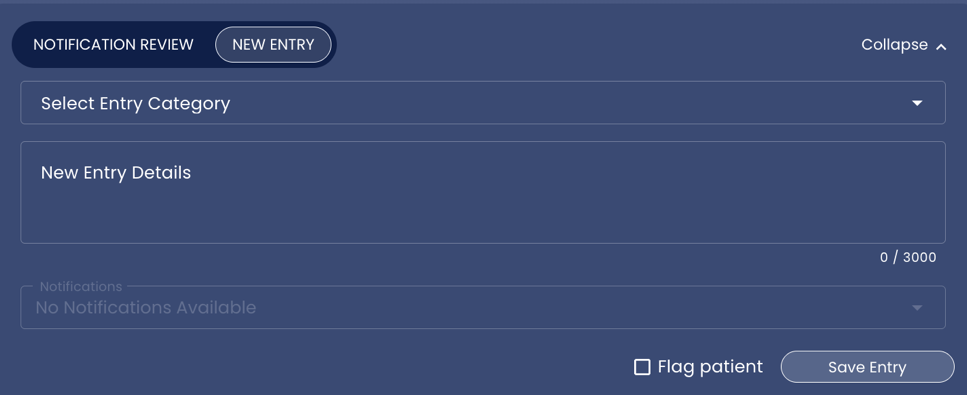
- Select Entry Category Dropdown Menu
Select an option from dropdown menu to categorize the new entry. - New Entry Details Text Box
Add details about the new entry in the text box. - Notifications Dropdown Menu
Select a notification(s) to associate with the entry. - Flag Patient Checkbox
Check this box to flag this entry to be displayed in the Clinical Impact Report. - Save Entry Button

Click this Button to save the new entry. This will log the new entry in the History List on the left side of the screen.
- Select Entry Category Dropdown Menu
- Export BioReport Button

Click this button to generate a PDF report of the currently selected patient’s vital signs and biometrics. Click “Save” in your web browser to download the report when prompted.


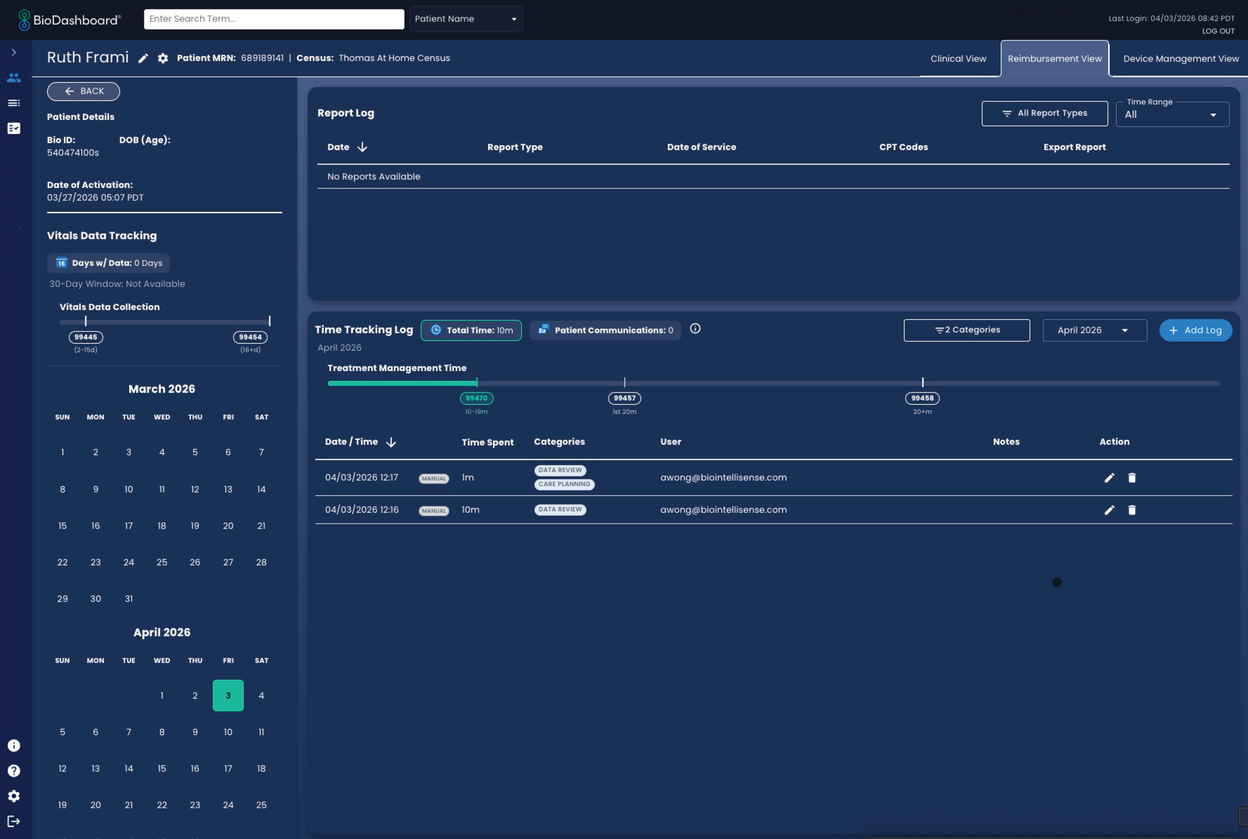
4.6. Reimbursement View
When a user clicks a Reimbursement Icon 


- Patient Details
Displays details associated with the selected patient. - Vitals Data Tracking
- Days w/ Data
Lists the number of days with at least one valid data point for the following vital signs when the patient is in the at-home care setting:- Heart rate
- Respiratory rate
- Calendar Icon
Displays a count of the number of days vitals data has been collected within 30 calendar days. - 30-Day Window
Displays the date range for the 30-day window of vitals data collection. - Vitals Data Collection Time Chart
Displays a visual indication for when vitals data collection tracking codes are met. The following codes are displayed:- CPT 99445
2–15 days of physiologic data. - CPT 99454
Minimum 16 days of physiologic data.
- CPT 99445
- Days w/ Data
- Report Log
The Report Log displays the following details for applicable service reports:- Date
The date the report was generated. - Report Type
Time Tracking or RPM Vitals. - Date of Service
The date that the service requirements were met.- For Vitals Data, this is the day where a minimum of 10 minutes of time tracking and at least 1 documented patient interaction were recorded.
- For Time Tracking, this is the day that at least 16 days of vitals data was collected, or the date at least 2 days of vitals data was collected, if less than 16 days of vitals data was collected.
- CPT Codes
The recommended CPT codes to bill based on data collected by the BioButton device for at-home monitoring. - Export Report Button

Click this button to preview and download a report locally. - Report Types Filter Dropdown Menu
Select the report types to display in the Report Log. The following options are available:- Vitals Data
- Time Tracking
- Time Range Dropdown Menu
Select the time range to display in the Report Log. The following options are available:- Current Month
- Last Month
- Last 6 Months
- Last Year
- YTD
- All
- Date
- Time Tracking Log
The Time Tracking Log displays the following details for each patient interaction:- Treatment Management Time Chart
Displays a visual indication for when time tracking codes are met. The following codes are displayed:- CPT 99470
10–19 minutes of documented time with at least one patient documented interaction. - CPT 99457
Minimum 20 minutes of documented time with at least one patient documented interaction. - CPT 99458
Add-on to CPT 99457. Additional 20 minutes of documented time.
- CPT 99470
- Date/Time
Date of interaction. - Total Time This Month
The total number of minutes spent with the patient within a calendar month period. - Patient Communications This Month
The total number of recorded patient interactions for the patient within a calendar month period. - Categories Dropdown Menu
The category of interaction. The following options are available:- Data Review
- Care Team Communication
- Patient Communication
- Care Planning
- User
The user that interacted with the patient. - Notes
Optional notes about the interaction. - Action
The following options are available:- Edit Interaction Button
Click this button to manually edit the interaction. - Remove Interaction Button

Click this button to remove the interaction.
- Edit Interaction Button
- Add Log Button

Click this button to manually enter an interaction with the patient.
- Treatment Management Time Chart


4.7. Device Management View
When a user clicks the Device Management View Tab 
IMPORTANT NOTE: Display PHI must be enabled in the Settings to access these features. Some of the fields shown above may not be displayed or may be different depending on your configuration.
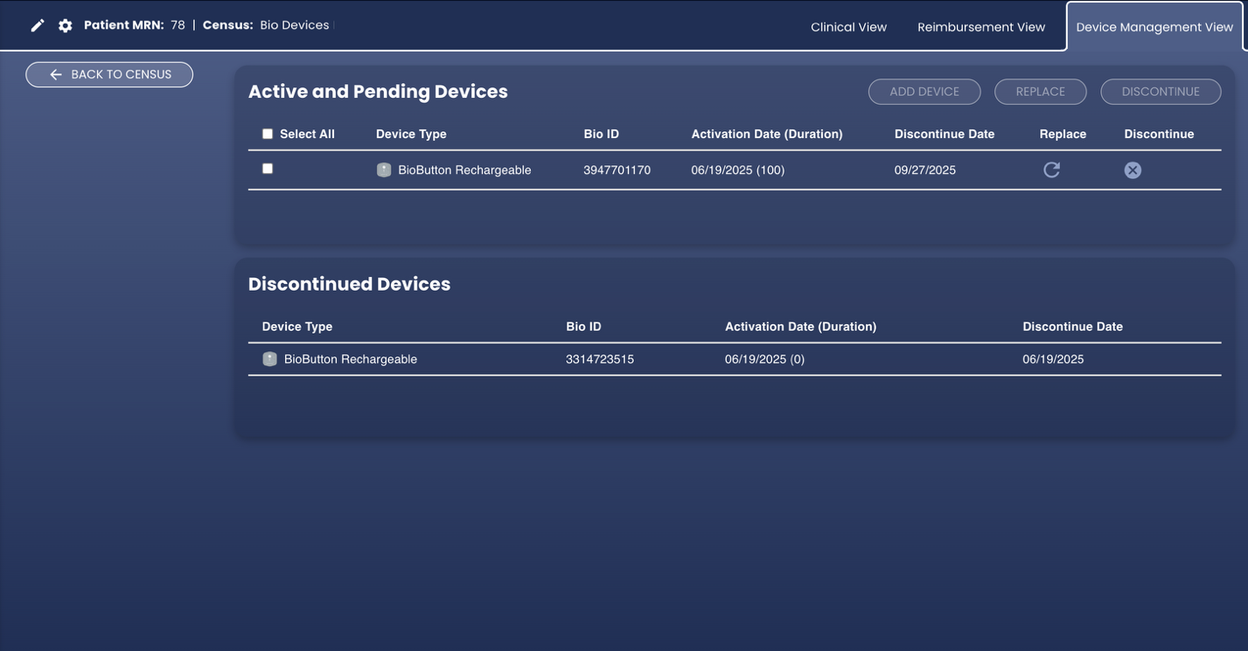
- Add Device Button

Click this button to add a new device for the selected patient. Manually enter the Bio ID of the new BioIntelliSense Device in the box or follow the onscreen instructions to scan the device barcode. - Replace Buttons


Select a device(s) using the checkbox and then click this button to replace the selected device(s). Manually enter the Bio ID of the new BioIntelliSense Device in the box or follow the onscreen instructions to scan the device barcode. - Discontinue Buttons


Select a device(s) using the checkbox and then click this button to discontinue patient monitoring for the selected device(s). This will also move the patient to the Discharged Category. A reason for device discontinuation must be selected. Additional notes can also optionally be added in the box.


4.8. Settings Menus
- Settings Menu
Clicking the Settings Button- General Preferences:
- Theme Mode
Choose to toggle “Dark mode” or “Light mode” display modes.
- Theme Mode
- Clinical View Settings:
- Show PHI Slider
Slide this toggle to turn PHI display on or off. - Show Notes and Notification Reviews Slider
Slide this toggle to allow access to Notification Review features in the Clinical View. This enables Notification Review, Enter Issue, Pinned Notes, and Notes History features (described in Clinical View above). - Enable RPM reimbursement icons in multi-patient view Slider
Slide this toggle to allow access to Reimbursement View (described in Reimbursement View above). - Enable Patient Review Carousel Slider
Slide this toggle to enable navigation to the next patient that has an outstanding notification review when currently viewing a patient clinical view. Click on “Next Patient” arrows to navigate to the next patient in the bottom center of the application. This menu only appears when hovered over with mouse cursor. The order of the patients in the carousel reflects the order of the patients in the multi-patient view, following the sort by and filters being applied. PHI and Notes and Notification Reviews must be enabled to use this feature. - Show notifications in patient charts
Slide this toggle to view clinical notifications in the patient charts. - Enable notifications navigation in patient charts
Slide this toggle to enable the automatic adjustment of patient chart views after clicking on an active notification or navigating to the next notification to be reviewed in the clinical view.
- Show PHI Slider
- Units and Date/Time Formats:
- Temperature Unit
Choose to toggle temperature display as Celsius or Fahrenheit. - Date Format Dropdown Menu
Select the Date format from the dropdown menu. - Day/Month Format Dropdown Menu
Select the Day/Month format from the dropdown menu. - Time Format Dropdown Menu
Select the time format from the dropdown menu.
- Temperature Unit
- Advanced Settings
Use the expand arrow
- Enable Client Side Caching
Helps improve performance by securely caching census data for up to two minutes. - Improve Patient Graph Performance
Helps improve performance by reducing datapoint update frequency while using the Patient Graphs.Clinical View Settings Menu
Clicking the Settings Button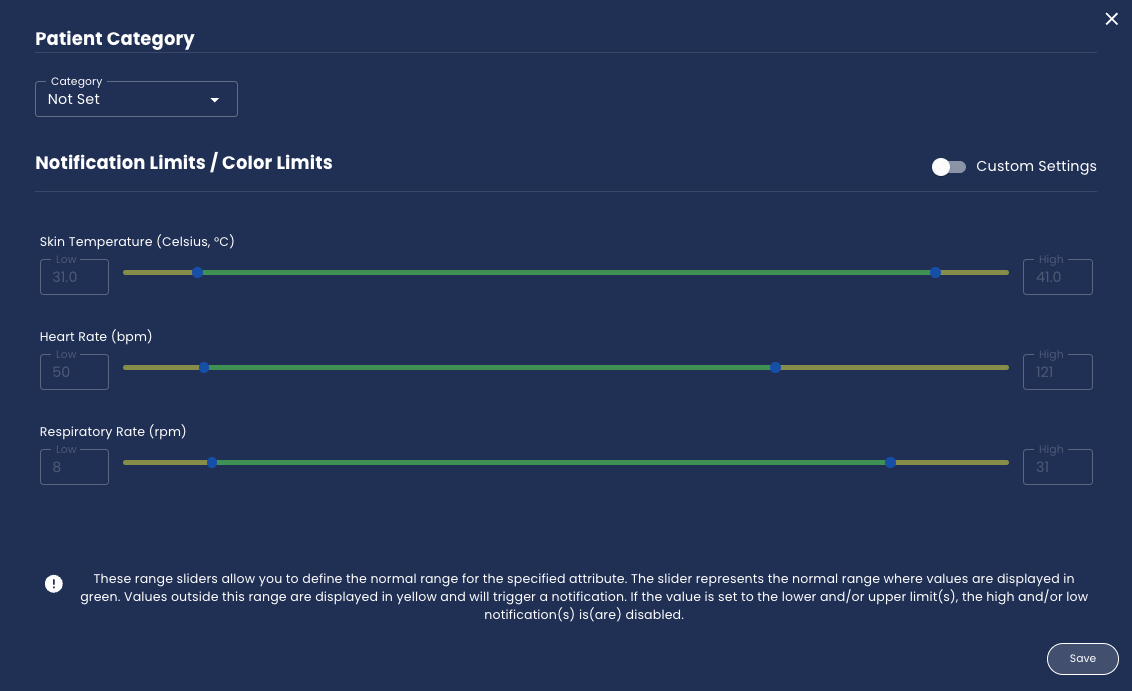
- Enable Client Side Caching
- Patient Category Dropdown Menu
Use this dropdown menu to categorize the selected patient by category and color within a care unit in the Multi-Patient View, based on the configuration of the user. The default options are Not Set, Monitor, Telemetry, Floor, Home, and SNF. PHI must be enabled to use this feature. - Skin Temperature Slider
Use the left slider and/or box to set the low limit and the right slider and/or box to set the high limit for skin temperature in degrees C (ºC) for the selected patient before a notification is sent. On the slider, the green range indicates normal values and yellow ranges indicate abnormal values (Low Default = 31°C) (High Default = 37 °C). - Heart Rate Slider
Use the left slider and/or box to set the low limit and the right slider and/or box to set the high limit for resting heart rate in bpm for the selected patient before a notification is sent. On the slider, the green range indicates normal values and yellow ranges indicate abnormal values (Low Default = 50 bpm) (High Default = 115 bpm). - Respiratory Rate Slider
Use the left slider and/or box to set the low limit and the right slider and/or box to set the high limit for resting respiratory rate in rpm for the selected patient before a notification is sent. On the slider, the green range indicates normal values and yellow ranges indicate abnormal values (Low Default = 8 rpm) (High Default = 28 rpm). - Reset to Default Button

Click this button to reset all notification limits to their default. - Save Settings Button

Click this button to save current notification limit settings.
- General Preferences:


4.9. Notifications
- Notification List
Notifications and their associated icons that can appear on the Multi-Patient View or Clinical View and/or are shown below:
IMPORTANT NOTE: Display PHI must be enabled in the Settings to access these features. Some of the fields shown above may not be displayed or may be different depending on your configuration.
| Notification Title | Icon | Description |
|---|---|---|
| Body Orientation Notification |  | Patient turn is overdue, with a potential indication of a turn being undone. |
| Heart Rate Threshold Notification | | High Heart Rate Threshold: 60-minute median Heart Rate (X bpm) is above threshold. [Default Threshold: 115 bpm]. Configurable for each patient in BioDashboard. Contact your BioIntelliSense Client Implementation Manager to configure globally by census, facility, and/or organization. |
| Low Heart Rate Threshold: 60-minute median Heart Rate (X bpm) is below threshold. [Default Threshold: 50 bpm]. Configurable for each patient in BioDashboard. Contact your BioIntelliSense Client Implementation Manager to configure globally by census, facility, and/or organization. | |
| Heart Rate Trending Notification | | Heart Rate Increase Trending 30 minutes/2 hours: Heart rate at rest increased X % to X bpm. 30-minute notification after 2-hour baseline. |
| Heart Rate Decrease Trending 30 minutes/2 hours: Heart rate at rest decreased X % to X bpm. 30-minute notification after 2-hour baseline. | |
| Heart Rate Increase Trending 1 hour/4 hours: Heart rate at rest increased X % to X bpm. 1-hour notification after 4-hour baseline. | |
| Heart Rate Decrease Trending 1 hour/4 hours: Heart rate at rest decreased X % to X bpm. 1-hour notification after 4-hour baseline. | |
| Heart Rate Increase Trending 2 hours/4 hours: Heart rate at rest increased X % to X bpm. 2-hour notification after 4-hour baseline. | |
| Heart Rate Decrease Trending 2 hours/4 hours: Heart rate at rest decreased X % to X bpm. 2-hour notification after 4-hour baseline. | |
| Heart Rate Increase Trending 4 hours/24 hours: Heart rate at rest increased X % to X bpm. 4-hour notification after 24-hour baseline. | |
| Heart Rate Decrease Trending 4 hours/24 hours: Heart rate at rest decreased X % to X bpm. 4-hour notification after 24-hour baseline. | |
| Heart Rate Increase Trending 24 hours/72 hours: Heart rate at rest increased X % to X bpm. 24-hour notification after 72-hour baseline. | |
| Heart Rate Decrease Trending 24 hours/72 hours: Heart rate at rest decreased X % to X bpm. 24-hour notification after 72-hour baseline. | |
| Respiratory Rate Threshold Notification | | High Respiratory Rate Threshold: 60-minute median Respiratory Rate (X rpm) is above threshold. [Default Threshold: 28 rpm]. Configurable for each patient in BioDashboard. Contact your BioIntelliSense Client Implementation Manager to configure globally by census, facility, and/or organization. |
| Low Respiratory Rate Threshold: 60-minute median Respiratory Rate (X rpm) is below threshold. [Default Threshold: 8 rpm]. Configurable for each patient in BioDashboard. Contact your BioIntelliSense Client Implementation Manager to configure globally by census, facility, and/or organization. | |
| Respiratory Rate Trending Notification | | Respiratory Rate Increase Trending 30 minutes/2 hours: Respiratory rate at rest increased X % to X rpm. 30-minute notification after 2-hour baseline. |
| Respiratory Rate Decrease Trending 30 minutes/2 hours: Respiratory rate at rest decreased X % to X rpm. 30-minute notification after 2-hour baseline. | |
| Respiratory Rate Increase Trending 1 hour/4 hours: Respiratory rate at rest increased X % to X rpm. 1-hour notification after 4-hour baseline. | |
| Respiratory Rate Decrease Trending 1 hour/4 hours: Respiratory rate at rest decreased X % to X rpm. 1-hour notification after 4-hour baseline. | |
| Respiratory Rate Increase Trending 2 hours/4 hours: Respiratory rate at rest increased X % to X rpm. 2-hour notification after 4-hour baseline. | |
| Respiratory Rate Decrease Trending 2 hours/4 hours: Respiratory rate at rest decreased X % to X rpm. 2-hour notification after 4-hour baseline. | |
| Respiratory Rate Increase Trending 4 hours/24 hours: Respiratory rate at rest increased X % to X rpm. 4-hour notification after 24-hour baseline. | |
| Respiratory Rate Decrease Trending 4 hours/24 hours: Respiratory rate at rest decreased X % to X rpm. 4-hour notification after 24-hour baseline. | |
| Respiratory Rate Increase Trending 24 hours/72 hours: Respiratory rate at rest increased X % to X rpm. 24-hour notification after 72-hour baseline. | |
| Respiratory Rate Decrease Trending 24 hours/72 hours: Respiratory rate at rest decreased X % to X rpm. 24-hour notification after 72-hour baseline. | |
| Temperature Threshold Notification | | High Skin Temperature Threshold: 60-minute median Skin Temperature (Xº) is above threshold. [Default Threshold: 37º]. Configurable for each patient in BioDashboard. Contact your BioIntelliSense Client Implementation Manager to configure globally by census, facility, and/or organization. |
| Low Skin Temperature Threshold: 60-minute median Skin Temperature (Xº) is below threshold. [Default Threshold: 31º]. Configurable for each patient in BioDashboard. Contact your BioIntelliSense Client Implementation Manager to configure globally by census, facility, and/or organization. | |
| Temperature Trending Notification | | The mean temperature for a 4-hour period was out of range compared to the previous 24-hour period. |
| Double High Threshold Notification | | 60-minute median Heart Rate (X bpm) and Respiratory Rate (X rpm) are above double-high thresholds [Default Thresholds: HR = 100 bpm, RR = 24 rpm]. |
| Triple High Threshold Notification | | 60-minute median Heart Rate (X bpm), Respiratory Rate (X rpm), and Skin Temperature (Xº) are above triple-high thresholds [Default Thresholds: HR = 100 bpm, RR = 24 rpm, Temp = 36º]. |
| Low Battery Notification |  | Low Battery detected. |
| Device Last Seen Notification | | Most recent timestamp the device connected to a gateway |
| Off Body Notification | | Sensor not attached for longer than X hours (configurable) |
| Heart Rate Low Signal Quality Notification | | Heart rate at rest unavailable due to Low Signal Quality |
| N/A |  | Off Body detected |
| N/A |  | Low signal quality detected |
| N/A | | Clinical Notification Review Button (Multi-Patient View): Clinical case needs review. Notes and Notification Reviews must be enabled in the Settings to view this icon. |
| N/A | | Non-Clinical Notification Review Button (Multi-Patient View): Non-clinical case needs review. Notes and Notification Reviews must be enabled in the Settings to view this icon. |
| N/A |  | Patient configurations have been altered |
| N/A | | No documented patient interactions. “Enable RPM Reimbursement Icons in Multi-Patient View” must be enabled in Settings to view this icon. |
| N/A | | Less than 10 minutes of time spent. “Enable RPM Reimbursement Icons in Multi-Patient View” must be enabled in Settings to view this icon. |
| N/A | | Less than 2 days of vitals data collected “Enable RPM Reimbursement Icons in Multi-Patient View” must be enabled in Settings to view this icon. |
Notification Calculations
The calculations for notifications are explained below:
IMPORTANT NOTE: BioDashboard software does not calculate notifications directly.
- Non-Clinical Technical Notifications:
- Low Battery Technical Notification
The Low Battery Technical Notification generates a notification when a BioIntelliSense wearable monitoring device falls below 10% battery power remaining. The purpose of this notification is to allow clinicians to identify patients who need to recharge their BioIntelliSense wearable monitoring device battery. - Device Last Seen Technical Notification
The Device Last Seen Technical Notification notifies clinicians of patients who may be having technical issues with their BioIntelliSense wearable monitoring device. A notification is triggered when a BioIntelliSense wearable monitoring device has not synchronized data to BioCloud for at least X hours (Default 4 h). - Heart Rate Low Signal Quality Technical Notification
In certain situations, BioIntelliSense wearable monitoring device firmware may not be able to capture heart rate readings despite being worn on a patient’s body and the patient being at rest. This occurs when the quality of the signal obtained from the accelerometer is not high enough to distinguish heartbeat pulses. The Heart Rate Low Signal Quality Notification identifies situations when all of the following criteria are met during an hour of a patient wearing BioIntelliSense wearable monitoring device and triggers a notification:- The patient was resting, as evidenced by low motion readings; and
- No heart readings were obtained during the hour.
- Off-Body Technical Notification
The outputs of the Off-Body Determination Algorithm are used to produce a technical notification to notify a clinician when a patient has not worn the BioIntelliSense wearable monitoring device for a configurable minimum length of (consecutive) time. By default, the notification is triggered when the device has been off-body for at least four (4) consecutive hours. A Random-Forest machine learning algorithm uses BioIntelliSense wearable monitoring device data to determine if the device is off body at any given minute.
- Low Battery Technical Notification
- Body Orientation Tracker Clinical Notification
The Body Orientation Tracker (BOT, or the device) monitors the orientation and movements of bedridden patients. The device takes input from compatible Food and Drug Administration (FDA)-cleared medical devices and calculates the time since patient’s last rotation as outputs. The device provides notifications when characteristics of a patient’s position deviate from preset parameters. The notification is triggered when either of the following conditions are true:- Rotation Overdue Notification
The patient has not been rotated at least X degrees (Default = 30 degrees) in X minutes (Default = 150 minutes) (i.e. the patient requires rotation). - Rotation Undone Notification
The patient has reverted at least 20 degrees back to their original position within Y minutes (Default = 15 minutes) of being rotated (i.e. the patient reverted to their original position too quickly after being rotated). The user will receive a notification to rotate the patient for this condition only if the patient has also not been rotated in X minutes (Default = 150 minutes) as is configured above.
- Rotation Overdue Notification
- Personalized Trending Clinical Notifications
These clinical notifications are triggered when a clinically and statistically meaningful increase or decrease in a single vital sign (heart rate or respiratory rate) occurs over a defined period of time. The following criteria outlined in the description and table below must be met for each notification to be triggered.- Increase Notification is Triggered When Both Below Are True:
- Percentage Change >= Percentage Change Threshold
- Cohen’s D Threshold >= Cohen’s D Threshold
- Decrease Notification is Triggered When Both Below Are True:
- Percentage Change <= (-Percentage Change Threshold)
- Cohen’s D Threshold <= (-Cohen’s D Threshold)
- Increase Notification is Triggered When Both Below Are True:
- IMPORTANT NOTE: Cohen’s D thresholding is not used for the 30-minute vs. 2-hour and 1-hour vs. 4-hour notifications.
- Threshold Clinical Notifications:
- High Heart Rate Threshold
Heart rate 60-minute median is above 115 bpm for in-facility patients and above 105 bpm for at-home patients (configurable by patient). - Low Heart Rate Threshold
Heart rate 60-minute median is below 50 bpm (configurable by patient). - High Respiratory Rate Threshold
Respiratory rate 60-minute median is above 28 rpm for in-facility patients and above 26 rpm for at-home patients (configurable by patient). - Low Respiratory Rate Threshold
Respiratory rate 60-minute median is below 8 rpm (configurable by patient). - High Skin Temperature Threshold
Temperature 60-minute median is above 37°C (98.6°F) (configurable by patient). - Low Skin Temperature Threshold
Temperature 60-minute median is below 31°C (87.8°F) (configurable by patient). - Double High
60-minute median heart rate is above 100 bpm, and 60-minute median respiratory rate is above 24 rpm. - Triple High
60-minute median heart rate is above 100 bpm, and 60-minute median respiratory rate is above 24 rpm, and 60-minute median skin temp is above 36°C (96.8°F).Notification Delays
The display of notifications in the user interface will be delayed by the processing of their signals. A summary of the delays associated with each signal processing step is shown in the table below:
- High Heart Rate Threshold
| Signal Processing Step | Duration of Delay |
|---|---|
| Vital Sign Calculation | 60 seconds |
| Data Offloaded from BioIntelliSense wearable monitoring device to Gateway to BioCloud | 20 minutes (average) |
| Data Received in BioCloud to Data Fully Decrypted and Processed | 0.631 seconds (average) |
| Data Fully Processed to Algorithm Output Calculation | 67.7 seconds (average personalized heart rate/respiratory rate notifications), 61.7 seconds (average personalized skin temperature notifications), and 68.7 seconds (average threshold notifications) |
| Notification Output Determination to Notification Delivery from BioCloud to Internal Messaging Service (i.e. Confluent) | 0.52 seconds (average) |
| BioDashboard Receiving a New Notification Message from Internal Messaging Service (i.e. Confluent) to Displaying Notification Icon in User Interface | 69.2 seconds (average) |
| Total Processing Time | 23.3 minutes |
4.10. Patient Registration
BioDashboard Registration
When the Add Patient Button 
IMPORTANT NOTE: Display PHI must be enabled in the Settings to access these features. Some of the fields shown above may not be displayed or may be different depending on your configuration.
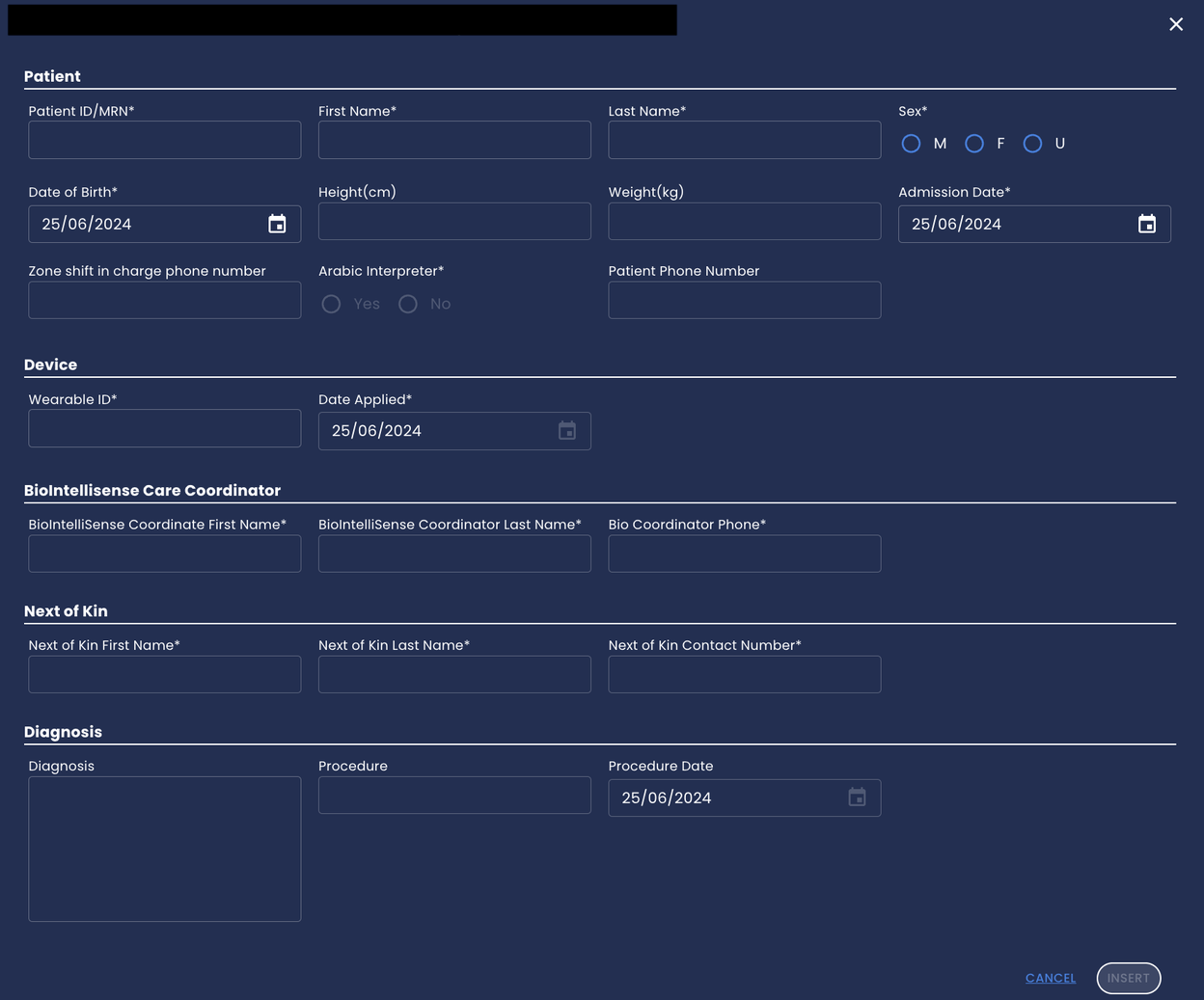
- BioDashboard Edit Patient Registration
When the Edit Patient Button
IMPORTANT NOTE: Display PHI must be enabled in the Settings to access these features. Some information is unable to be updated with the update patient registration form and will appear in gray. Some of the fields shown above also may not be displayed or may be different depending on your configuration.Electronic Medical Record Patient Registration
Patients can also be registered, transferred, or discharged through the electronic medical record (EMR), if applicable. Contact your hospital administrator for more information.
4.11. Help Menu
When the Help Menu Icon 
- Help
Click tab to display the Help Pages. This lists the help options that are available and the BioIntelliSense Technical Support Email Address. - Color Limits
Click this tab to display definitions of colors for vital signs in the Multi-Patient View and for body organs and other biometrics in the Clinical View. - Icons and Notifications
Click this tab to display definitions of notifications and their associated icons. - Selected Census Dropdown Menu
Click this dropdown menu to view the different census configurations for color limits and notifications, based on the configuration available.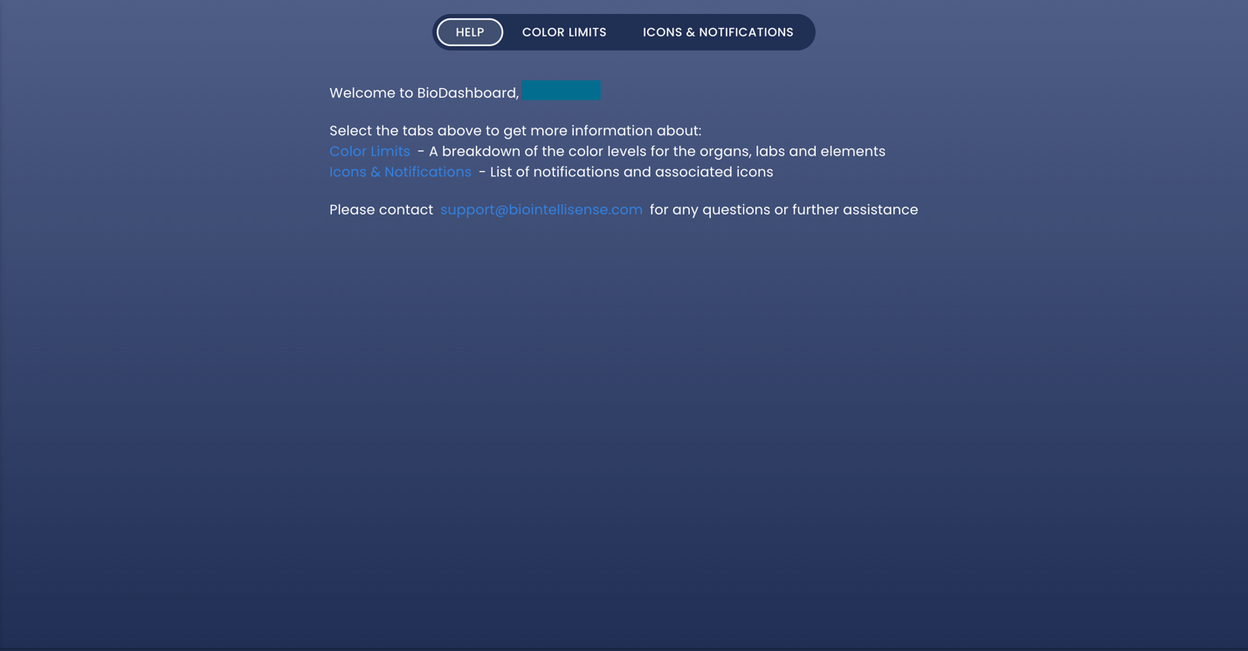
4.12. About Menu
Clicking the About Button 

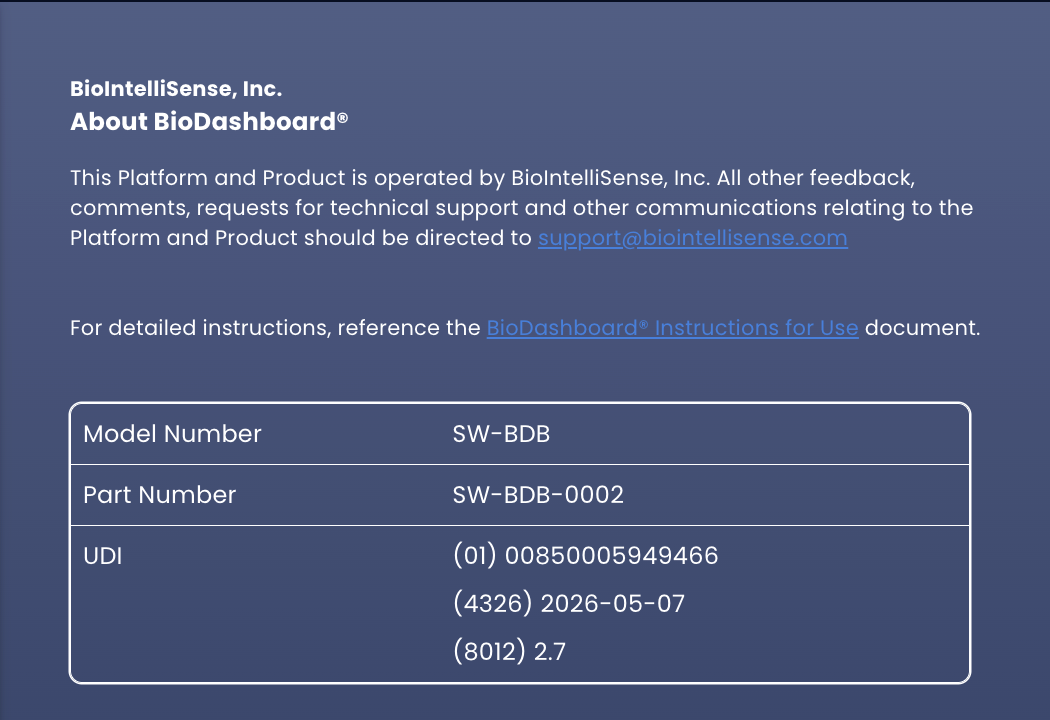
5. Troubleshooting and FAQs
If additional support is required, please call 888.908.8804 (US) or email support@biointellisense.com
IMPORTANT NOTE: Some features described in this document may not be functional on mobile devices.
6. Safety and Regulatory Information
| Version Number | 0002 |
| Model Number | SW-BDB |
| Product Name | BioDashboard V2 |
| Part Number (PN) | SW-BDB-0002 |
| GTIN | 00850005949466 |
Changes or modifications not expressly approved by the party responsible for compliance could void the user’s authority to operate the equipment.
BioIntelliSense, BioDashboard and BioButton are trademarks or registered trademarks of BioIntelliSense, Inc.
RESPONSIBLE PARTY:
BioIntelliSense, Inc.
805 Veterans Blvd, Unit 105
Redwood City, CA 94063
6.1. Terms of Use Statement
NOTICE: Use of the BioIntelliSense Product(s) is subject to our:
- Website and Product User Terms of Use at www.biointellisense.com/website-and-product-user-terms-of-use
- Website and Product Privacy Policy at www.biointellisense.com/legal/privacy-policy
By using the Product(s), you indicate you have read these terms and policies and that you agree to them, including the limitations and disclaimers of liability. In particular, you understand and consent that use of the Product(s) measures and records personal information about you, including vital sign and other physiologic measurements. That information may include respiratory rate, heart rate, temperature, activity level, sleep duration, body position, step count, gait analysis, coughing, and other symptomatic or biometric data. You understand that the Product(s) do not render medical advice or diagnose or prevent any specific disease, including any communicable disease or virus. If you have any concerns about your health, including whether you have been exposed to or have contracted any disease or virus, immediately contact your healthcare provider.
7. Symbol Library
 | Medical device |
 | Consult instructions for use |
 | Caution |
 | For prescription use only |
8. Technical Specifications
| Product name | BioDashboard V2 |
| Version Number | 0002 |
8.1. Communications
| Security | AES 128 bit encryption/TLS 1.2 for data transfer AES 256 bit encryption for data at rest |
9. Contact Us
For non-urgent support or questions about our product, please call 888.908.8804 (US) or email support@biointellisense.com
Manufactured by
BioIntelliSense, Inc.
805 Veterans Blvd, Unit 105
Redwood City, CA 94063